Search This Blog

Showing posts with label WCF Service. Show all posts

Friday, 24 November 2017

Creating a Self Hosted WCF Service

If you haven't created the WCF Service go to following link to create the Service.


If you created the WCF Service follow the following Step to Self Host.

Step 1:- Open Visual Studio 2010

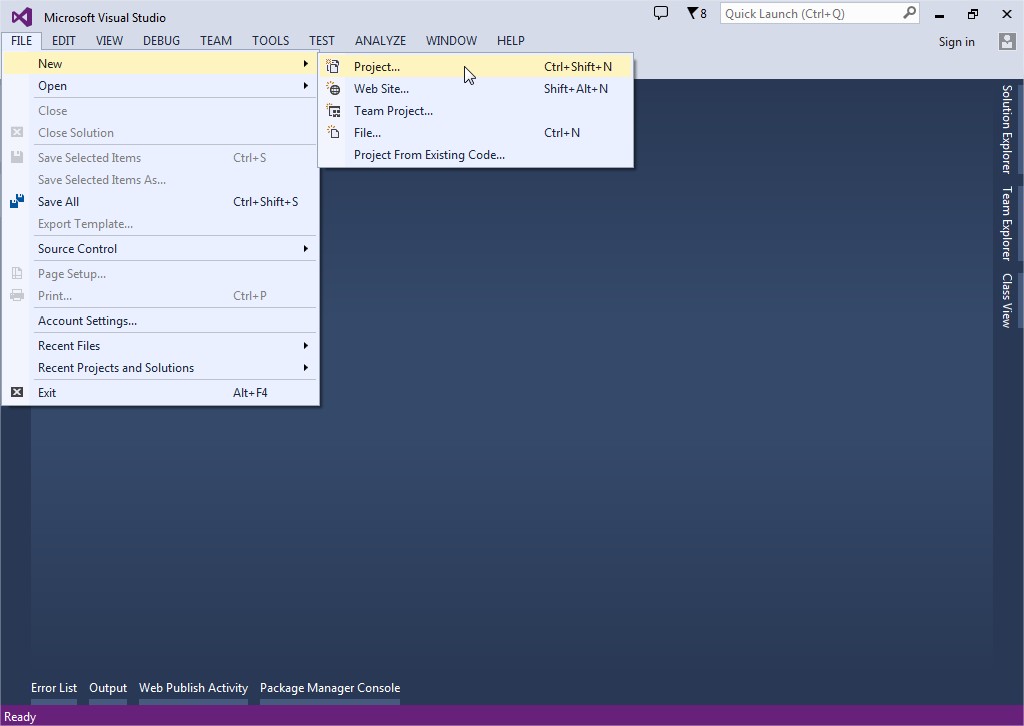
Step 2:- Go to File menu => New => Project...


Step 3:- Left Pane Templates select Visual C# => Select Console Application from Middle pane => Type SelfHost in the Name box => Click OK.


Step 4:- Right click SelfHost in Solution Explorer => Select Add Reference.... => Select System.ServiceModel from the .NET tab => Click OK.


Step 5:- Right click SelfHost in Solution Explorer => Select Add Reference.... => Select Browse tab => Give Service File path "D:\DEMO\WCF\EmployeeWcfService\EmployeeWcfService\bin" => Click OK => Select EmployeeWcfService.dll => Click OK.


Step 5:- Add the following namespace

using System.ServiceModel;
using System.ServiceModel.Description;
using EmployeeWcfService;


Step 6:- Create an instance of the Uri class with the base address for the service.

Uri baseAddress = new Uri("http://localhost:52923/EmployeeService.svc");


Step 7:- Create an instance of the ServiceHost class, passing a Type that represents the service type and the base address Uniform Resource Identifier (URI) to the ServiceHost(Type, Uri[]). Enable metadata publishing, and then call the Open method on the ServiceHost to initialize the service and prepare it to receive messages.

// Create the ServiceHost.
using (ServiceHost host = new ServiceHost(typeof(EmployeeService), baseAddress))
{
// Enable metadata publishing.
ServiceMetadataBehavior smb = new ServiceMetadataBehavior();
smb.HttpGetEnabled = true;
smb.MetadataExporter.PolicyVersion = PolicyVersion.Policy15;
host.Description.Behaviors.Add(smb);

// Open the ServiceHost to start listening for messages. Since
// no endpoints are explicitly configured, the runtime will create
// one endpoint per base address for each service contract implemented
// by the service.
host.Open();

Console.WriteLine("The service is ready at {0}", baseAddress);
Console.WriteLine("Press <Enter> to stop the service.");
Console.ReadLine();

// Close the ServiceHost.
host.Close();
}


Complete Code

using System;
using System.Collections.Generic;
using System.Linq;
using System.Text;
using System.ServiceModel;
using System.ServiceModel.Description;
using EmployeeWcfService;

namespace SelfHost
{
class Program
{
static void Main(string[] args)
{
Uri baseAddress = new Uri("http://localhost:52923/EmployeeService.svc");

// Create the ServiceHost.
using (ServiceHost host = new ServiceHost(typeof(EmployeeService), baseAddress))
{
// Enable metadata publishing.
ServiceMetadataBehavior smb = new ServiceMetadataBehavior();
smb.HttpGetEnabled = true;
smb.MetadataExporter.PolicyVersion = PolicyVersion.Policy15;
host.Description.Behaviors.Add(smb);

// Open the ServiceHost to start listening for messages. Since
// no endpoints are explicitly configured, the runtime will create
// one endpoint per base address for each service contract implemented
// by the service.
host.Open();

Console.WriteLine("The service is ready at {0}", baseAddress);
Console.WriteLine("Press <Enter> to stop the service.");
Console.ReadLine();

// Close the ServiceHost.
host.Close();
}
}
}
}


Step 7:- Press Ctrl + F5 Or Use Visual Studio Start Debugging(F5) icon to run the service.

If you get the following error.
1. Check you have administrative rights.
2. Run Visual Studio instance as an administrator.
Step :- Right Click Visual Studio Icon => Click "Run as administrator"


Step 8:- If following screen appear, Your WCF service is running and SelfHosted Successfully => Use following URL to Consume the Service.

URL :- http://localhost:52923/EmployeeService.svc


Now your WCF Service running, to check it follow the following link to consume it.


For More Info Visit microsoft.com

Hosting WCF Service inside IIS

If you haven't created the WCF Service go to following link to create the Service.


If you create the WCF Service follow the following Step to Host WCF Service inside IIS

Note :- Step based on Windows 10 Operating System

Step 1 :- To Open the IIS Manager, Search "Run" in Search Windows => Click/Enter "Run" => "Run" Window box Open => Type "inetmgr" => Click/Enter "OK"

Or

Search "inetmgr" in Search Windows => Click/Enter "Internet Information Services (IIS) Manager"


Step 2:- Right Click Sites => Add Website...


Step 3:- Fill Details... => Click OK => WCF Website added under Sites List

Site name :- WCF
Physical path :- D:\DEMO\WCF\EmployeeWcfService\EmployeeWcfService
Port :- 52923


Step 4:- Select the WCF Website and switch to Features View to Content View


Step 5:- Select the EmployeeService.svc => Right Click EmployeeService.svc => Select Browse


Step 6:- If following screen appear, Your WCF service is running and hosted on IIS Successfully => Use following URL to Consume the Service.

URL :- http://localhost:52923/EmployeeService.svc?wsdl


Now your WCF Service running on IIS, to check it follow the following link to consume it.

Thursday, 3 March 2016

Consuming WCF Service in Visual Studio 2013 Step by Step

If you haven't created the WCF Service go to following link to create the Service.


Note:-

1. First few steps are used for when we want to consume the Service in the development mode.

2. If your service is hosted on IIS, SelfHost, skip the first few steps. 

Step 1:- Right Click on Project Root Folder => Click on Properties


Step 2:- Select Web Tab => Change Selection Specific Page to Current Page


Step 3:- Left click on EmployeeWcfService => Click on Save Selected Items


OR you can use Ctrl + S to save file

Step 4:- Run the Project => Click on EmployeeService.svc


Step 5:- Copy the URL http://localhost:52923/EmployeeService.svc?wsdl => Leave Browser to Running Mode


Note:-

If we stop the Browser our Local IIS Express Server also stopped. For consuming the Service we required our Service in running state.


Let's Start


Step 1:- Open Visual Studio 2013

Step 2:- Go to File => New => Project...


Step 3:- Expand Left Pane Templates => Visual C# => Select Windows Form Application from Middle pane


Step 4:- Give Name ConsumeWcfService => Click OK


Step 5:- Open Solution Explorer


Step 6:- Right Click on References => Add Service References… 


Step 7:- Add Service References Window will be open => Past the URL http://localhost:52923/EmployeeService.svc?wsdl in Address box => Click on Go Button => If service successfully run, you will see EmployeeService in Left box


Step 8:- Expand the EmployeeService


Step 9:- Give Namespace Name EmployeeWcfServiceReference => Click on OK Button


You will see EmployeeWcfServiceReference References added in your project.


Step 10:- Design the page as shown below

Label Properties
Name
Text
lblId
Id
lblName
Name
lblEmail
Email
lblAge
Age
lblGender
Gender
TextBox Properties
Name
Text
txtId
txtName
txtEmail
txtAge
txtGnder
Button Properties
Name
Text
btnSearchById
Search By Id
btnInsert
Insert
btnUpdate
Update
btnDelete
Delete
btnAll
All Employee


Step 11:- If Design is completed. Then click on each button to generate button event


Step 12:- Copy Past below code in respective button click event

private void btnSearchById_Click(object sender, EventArgs e)
        {

            int id = Convert.ToInt32(txtId.Text);
            List<Employee> employee = employeeServiceClient.GetDataById(id).ToList();

            foreach (var emp in employee)
            {
                txtName.Text = emp.Name;
                txtEmail.Text = emp.Email;
                txtAge.Text = Convert.ToString(emp.Age);
                txtGender.Text = emp.Name;
            }

        }

        private void btnInsert_Click(object sender, EventArgs e)
        {
            Employee employee = new Employee();

            employee.Id = Convert.ToInt32(txtId.Text);
            employee.Name = txtName.Text;
            employee.Email = txtEmail.Text;
            employee.Age = Convert.ToInt32(txtAge.Text);
            employee.Gender = txtGender.Text;

            int i = employeeServiceClient.AddEmployee(employee);

            if (i > 0)
            {
                MessageBox.Show("Record Added");
            }
            else
            {
                MessageBox.Show("Record Not Added");
            }
        }

        private void btnUpdate_Click(object sender, EventArgs e)
        {
            Employee employee = new Employee();

            employee.Id = Convert.ToInt32(txtId.Text);
            employee.Name = txtName.Text;
            employee.Email = txtEmail.Text;
            employee.Age = Convert.ToInt32(txtAge.Text);
            employee.Gender = txtGender.Text;

            int i = employeeServiceClient.UpdateEmployee(employee);

            if (i > 0)
            {
                MessageBox.Show("Record Updated");
            }
            else
            {
                MessageBox.Show("Record Not Updated");
            }
        }

        private void btnDelete_Click(object sender, EventArgs e)
        {
            int id = Convert.ToInt32(txtId.Text);

            int i = employeeServiceClient.DeleteEmployee(id);

            if (i > 0)
            {
                MessageBox.Show("Record Deleted");
            }
            else
            {
                MessageBox.Show("Record Not Deleted");
            }
        }

        private void btnAll_Click(object sender, EventArgs e)
        {
            List<Employee> employee = employeeServiceClient.GetData().ToList();

            dataGridView1.DataSource = employee;
        }


Add following Refererence
using ConsumeWcfService.EmployeeWcfServiceReference;

Step 13:- Complete Code

using System;
using System.Collections.Generic;
using System.ComponentModel;
using System.Data;
using System.Drawing;
using System.Linq;
using System.Text;
using System.Threading.Tasks;
using System.Windows.Forms;
using ConsumeWcfService.EmployeeWcfServiceReference;

namespace ConsumeWcfService
{
    public partial class Form1 : Form
    {
        EmployeeServiceClient employeeServiceClient = new EmployeeServiceClient();
        public Form1()
        {
            InitializeComponent();
        }

        private void btnSearchById_Click(object sender, EventArgs e)
        {

            int id = Convert.ToInt32(txtId.Text);
            List<Employee> employee = employeeServiceClient.GetDataById(id).ToList();

            foreach (var emp in employee)
            {
                txtName.Text = emp.Name;
                txtEmail.Text = emp.Email;
                txtAge.Text = Convert.ToString(emp.Age);
                txtGender.Text = emp.Name;
            }

        }

        private void btnInsert_Click(object sender, EventArgs e)
        {
            Employee employee = new Employee();

            employee.Id = Convert.ToInt32(txtId.Text);
            employee.Name = txtName.Text;
            employee.Email = txtEmail.Text;
            employee.Age = Convert.ToInt32(txtAge.Text);
            employee.Gender = txtGender.Text;

            int i = employeeServiceClient.AddEmployee(employee);

            if (i > 0)
            {
                MessageBox.Show("Record Added");
            }
            else
            {
                MessageBox.Show("Record Not Added");
            }
        }

        private void btnUpdate_Click(object sender, EventArgs e)
        {
            Employee employee = new Employee();

            employee.Id = Convert.ToInt32(txtId.Text);
            employee.Name = txtName.Text;
            employee.Email = txtEmail.Text;
            employee.Age = Convert.ToInt32(txtAge.Text);
            employee.Gender = txtGender.Text;

            int i = employeeServiceClient.UpdateEmployee(employee);

            if (i > 0)
            {
                MessageBox.Show("Record Updated");
            }
            else
            {
                MessageBox.Show("Record Not Updated");
            }
        }

        private void btnDelete_Click(object sender, EventArgs e)
        {
            int id = Convert.ToInt32(txtId.Text);

            int i = employeeServiceClient.DeleteEmployee(id);

            if (i > 0)
            {
                MessageBox.Show("Record Deleted");
            }
            else
            {
                MessageBox.Show("Record Not Deleted");
            }
        }

        private void btnAll_Click(object sender, EventArgs e)
        {
            List<Employee> employee = employeeServiceClient.GetData().ToList();

            dataGridView1.DataSource = employee;
        }
    }
}

We have Successfully integrated the service with Client.

Let's Test

Step 1:- Enter Employee Id 1 in Id TextBox field and Click on Search By Id button

You will get the Employee Id 1 detail


Step 2:- Enter following details in respective field and click on Insert button

Id = 0
Name = Ram
Email = ram@gmail.com
Age = 25
Gender = Male

Here we are passing Id = 0 because in database employee id column is identity and In insert case its generate auto Employee Id.


New Record added in Employee table

select * from tblEmployee

Id
Name
Email
Age
Gender
1
Sara Nan
Sara.Nani@test.com
30
Female
2
James Histo
James.Histo@test.com
33
Male
3
Mary Jane
Mary.Jane@test.com
28
Female
4
Paul Sensit
Paul.Sensit@test.com
29
Male
5
Ram
ram@gmail.com
25
Male

Step 3:- Enter Employee Id 1 in Id TextBox field and Click on Search By Id button => Change Email Id Sara.Nani@test.com to Sara.Nani@gmail.com  => click on Update button


Here you will see the email id Updated Sara.Nani@test.com to
Sara.Nani@gmail.com in the Employee table who’s Employee Id is 1.

select * from tblEmployee

Id
Name
Email
Age
Gender
1
Sara Nan
Sara.Nani@gmail.com
30
Female
2
James Histo
James.Histo@test.com
33
Male
3
Mary Jane
Mary.Jane@test.com
28
Female
4
Paul Sensit
Paul.Sensit@test.com
29
Male
5
Ram
ram@gmail.com
25
Male

Step 4:- Enter Employee Id 5 in Id TextBox field and Click on Search By Id button => click on Delete button


Here you will see the who’s Employee Id is 5 deleted from the Employee table.

select * from tblEmployee

Id
Name
Email
Age
Gender
1
Sara Nan
Sara.Nani@test.com
30
Female
2
James Histo
James.Histo@test.com
33
Male
3
Mary Jane
Mary.Jane@test.com
28
Female
4
Paul Sensit
Paul.Sensit@test.com
29
Male

Step 5:- Click on All Employee button to List all Employee